The short answer
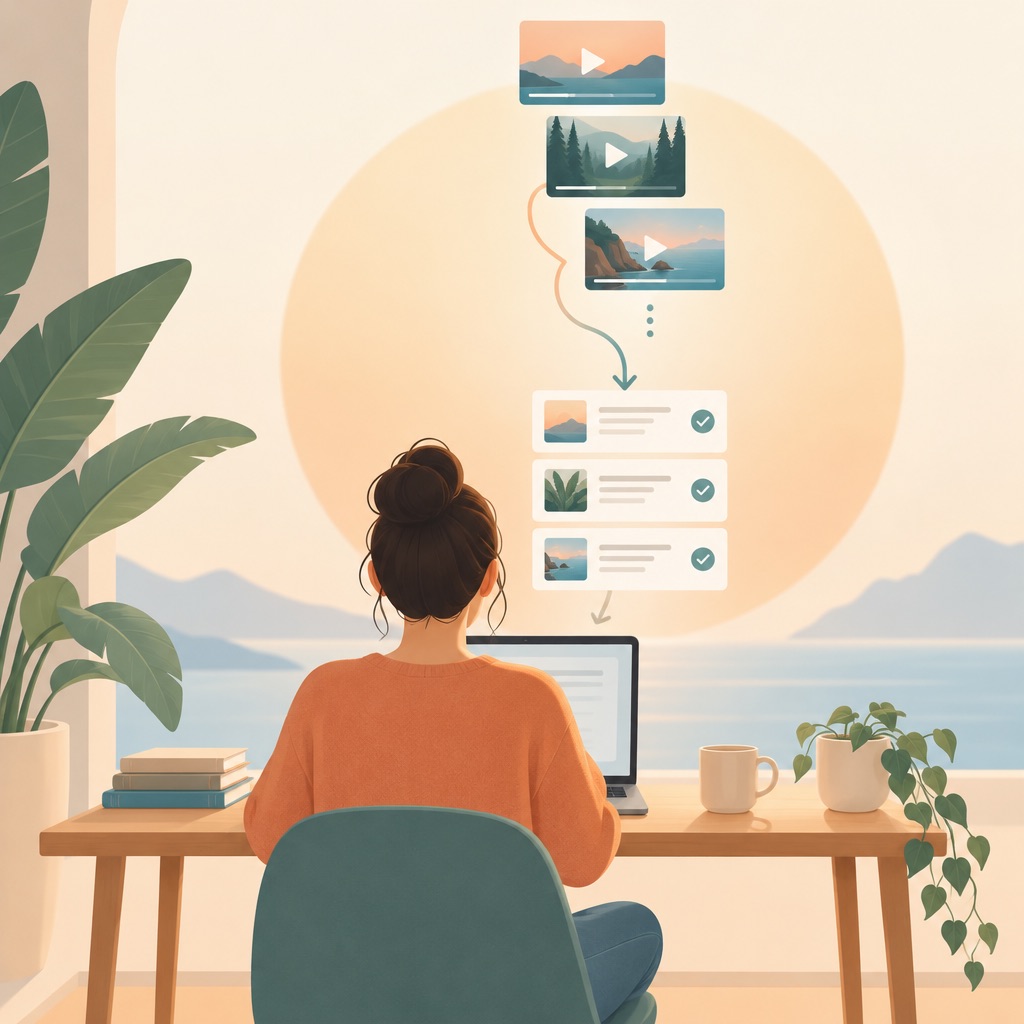
To turn a YouTube playlist into a course, treat each video as a lesson, group the lessons into a few parts, put them in an order where each one builds on the last, and add the pieces a playlist is missing: a short written summary under each video and a quiz at the end of each part. You can do this by hand in a document or course tool, or paste the playlist link into the YouTube tab of Create with AI on LearnSpace, which builds one lesson per video, drafts the outline from the playlist, and then writes the lesson text and quizzes for you to review.
The rest of this guide covers both routes, step by step.
Why a playlist is not yet a course
A playlist is a list. A course is a path. The difference shows up in three places:
- Order. Playlists are often sorted by upload date, not by what a learner needs first.
- Structure. Thirty videos in a single column give no sense of progress. Parts or modules do.
- Practice. Watching feels like learning, but recall is what makes it stick. Research on study techniques rates practice testing as one of the most useful methods available (Dunlosky et al., 2013), and a playlist has no tests at all.
So the work is mostly about choosing, ordering and adding practice.
Step 1: Pick the videos
Start with the playlist you have, then cut.
- Write the goal in one sentence. For example: "After this course, a beginner can build and deploy a simple website." Every video should serve that sentence.
- Remove duplicates and detours. Channel updates, live-stream recaps and "what's new" videos usually don't belong.
- Check for gaps. If video 4 assumes something no earlier video explained, add a video (yours or another creator's) or plan a short written lesson to bridge it.
- Prefer shorter videos. If one video runs for an hour and covers four topics, note the timestamps and consider treating it as several lessons.
A useful rule: if you can't say in one line what a learner gets from a video, it probably isn't a lesson.
Step 2: Put the lessons in order
Order for the learner, not the uploader.
- Foundations first. Vocabulary and core concepts before techniques.
- Simple before complex. A worked example before a variation of it.
- Group into parts. Five to ten lessons per part is easy to scan. Give each part a name that says what the learner can do after it ("Part 2: Styling pages with CSS"), not just a number.
Step 3: Add what the videos don't give you
This is where a playlist becomes a course.
A short summary under each video
Two or three paragraphs per lesson: the main idea, the key terms, and anything the learner should copy down. Summaries help people who skim, people who want to revisit a lesson without rewatching it, and anyone who can't play audio right now. For a quick start on a single video, the YouTube summarizer turns a video URL into an AI summary with key takeaways and lets you download the transcript.
A quiz at the end of each part
Three to five multiple-choice questions per part is enough. Good questions:
- ask about the idea, not about trivia from the video ("What happens when..." rather than "What colour was the slide...");
- have one clearly right answer and wrong answers that reflect common mistakes;
- can be answered from the lessons in that part.
Roediger and Karpicke found that students who took recall tests on a passage remembered more of it a week later than students who spent the same time restudying it (Test-Enhanced Learning, 2006). A short quiz is a cheap way to get that benefit.
An introduction and a finish line
One short opening lesson that says who the course is for and what they'll be able to do. One closing note that points to what to learn next.
Doing it manually
The manual route works well for small playlists and gives you full control.
- Create a course in your course tool (or a shared document if you're just organizing it for yourself).
- Add a section per part and a lesson per video. Embed or link each video.
- Write the summary under each video while you watch it at 1.25x with notes open.
- Write the quiz for each part after you finish its videos.
- Watch the course once as a learner and fix anything out of order.
Expect this to take longer than the playlist's running time, because you watch everything and write as you go.
Doing it with Create with AI
If you'd rather review and edit than write from scratch, LearnSpace's Create with AI does the first draft.
- Open Create with AI and choose the YouTube tab.
- Paste the playlist URL (a youtube.com/playlist?list=... link). If you paste a link to a single video that was opened from a playlist, you can choose to use the whole playlist instead of that video alone.
- Load the playlist. LearnSpace lists the videos and builds an outline from them: one lesson per video, in playlist order, with each lesson's description taken from the first sentence of its video description. Longer playlists are split into parts of up to 10 videos. The outline holds up to 120 videos, and you're told if any were left out.
- Set the audience and difficulty (beginner, intermediate or advanced), and optionally a style guide.
- Edit the outline. Rename, reorder, delete or add sections and lessons. This is where you apply Steps 1 and 2 above: cut the detours, move foundations to the front, rename the parts. Content is written for exactly the outline you approve, and you see an estimate of the sections, lessons, quiz questions and AI credits before anything is generated.
- Write the course. LearnSpace writes companion text for each lesson from the video's title and description, embeds the video above it, and adds a short multiple-choice quiz for each section. This usually takes 30 to 90 seconds, then the course opens in the editor.
- Review and polish. Read each lesson against its video and correct anything the description didn't cover well. Video descriptions vary a lot in quality, so the lesson text is a starting point that you check, not a final word.
When the single-video option is better
If your "playlist" is really one long lecture, paste that single video link instead. For a single video, Create with AI transcribes it and builds the course from the transcript, which suits long talks better than a one-lesson outline.
Tips that make the result better
- Credit the creators. Embedding keeps the videos on YouTube with their creators' channels, but say whose work it is in the course introduction, and respect their terms if you plan to charge for the course.
- Keep parts short. A learner who finishes Part 1 is more likely to start Part 2.
- Add one practical task per part. "Build this", "write that", "try it on your own data". Quizzes check recall; tasks check skill.
FAQ
Can I turn someone else's YouTube playlist into a course?
You can organize public videos for your own study or for a group, since embedded videos stay on YouTube. If you plan to sell the course or present it as your own, check the creators' terms and ask permission. Always credit the channels.
How many videos should one course have?
As many as the goal needs and no more. Many good beginner courses fit in 10 to 30 lessons. If a playlist has 80 videos, it is often two or three courses.
Does LearnSpace use the video transcripts for playlists?
For playlists, lesson text is written from each video's title and description, and the video is embedded in the lesson. For a single video link, Create with AI transcribes the video. Either way, review the text before you publish.
Can I change the order after the course is generated?
Yes. You can reorder sections and lessons in the outline before writing, and edit the course in the editor afterwards.
What if I only want notes from one video?
Use the YouTube summarizer for a summary and downloadable transcript of a single video.